Websphere Application Server Security – make sure file based auth continues if federated repository is unavailable

While looking for another tidbit of information on Google I found this very interesting setting in a WAS FAQ (Q & A: Frequently asked questions about WebSphere Application Server security). That fact that access to the Integrated Solutions Console (ISC) would stop if a LDAP directory was unavailable even though the ISC admin account was local has been bothering me for a while. It was nice to see that this fact which has been irritating me for a while (when it isn’t set) is solvable.

7. When using a federated repository, is there a way to ensure that my file-based registry will continue to function when a LDAP server is down?

Yes, there is a configuration option that enables the authentication to continue if one or more other registries are down, as long as the ID is found in one of the registries that are still up and functional. The federated repository configuration command to permit this is:

$AdminTask createIdMgrRealm
     -name ibmRealm -allowOperationIfReposDown true

More information can be found in the Information Center article: IdMgrRealmConfig command group for the AdminTask object.

How Eclipse improvements are important to Lotus Notes 8

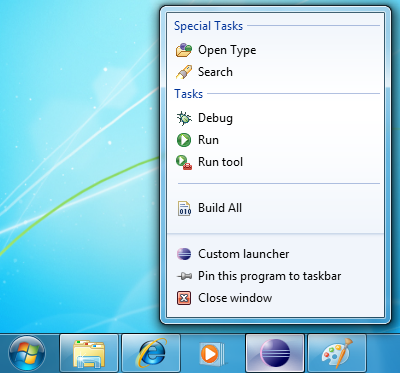
Eclipse 3.6 (also called Helios) was just released the other day and with a new release of Eclipse comes a new release of SWT (the underlying widget framework). Among the many release notes you’ll find “Eclipse 3.6 SWT News and Noteworthy” outlining core SWT improvements.

Especially one of the improvements was of interest as I see how it could be used to improve Lotus Notes, the interaction with the OS and in turn the usability of the client. The feature is about the program representation in the program list normally shown in the bottom of the screen. Below are some samples. I could see this used to give feedback about unread e-mails, pending IM’s, progress of overall replication etc. Interesting stuff (see “TaskItem overlay image / text / menu / process” in the release notes).

How the new iPhone OS may expand the use of Lotus Traveler

For all us iPhone affectionados today was a day of joy as iOS4 arrived in iTunes. There are numerous nice features in iOS4 but the most important from a Lotus perspective is the fact that iOS4 allows multiple ActiveSync accounts (or as the iPhone calls it: “Exchange accounts”). This means that you may use you iPhone with multiple mail systems whether that be multiple Lotus Traveler systems or Lotus Traveler and another mail system such as Google mail or Exchange. Very nice.

I just tried it out with the demo Lotus Traveler from Greenhouse at traveler.lotus.com and it works like a charm.

MyWidgets just got better – Option to specify a custom widget icon for sidebar

Please note: The following is from the release notes of Notes 8.5.2 so I don’t take credit for writing this. Lotus Notes 8.5.2 is in beta and there are no guarantees that the features described here will be in the final product that IBM ships.

Power users and administrators can add a new viewImageUrl attribute to the palleteItem element in a widget’s extension.xml definition to specify a custom icon to use in the sidebar view/title bar for that widget. The viewImageURL attribute value must be a URL to the desired image, for example:

viewImageUrl="http://my.server.com/myImage.ico"

Example widget XML syntax is shown below:

<?xml version="1.0" encoding="UTF-8"?>
<webcontextConfiguration version="1.1">
<palleteItem allowMutlipleSidebars="true"
contributeToSideshelfOnStartup="false"
id="1140471160" viewImageUrl="http://my.server.com/myImage.ico"
imageUrl="http://www.google.com/favicon.ico"
providerId="com.ibm.rcp.toolbox.web.provider.WebServicesPalleteProvider"
title="Google Search" url="http://www.google.com/" >

MyWidgets just got better – Option to set default widget double-click action

Please note: The following is from the release notes of Notes 8.5.2 so I don’t take credit for writing this. Lotus Notes 8.5.2 is in beta and there are no guarantees that the features described here will be in the final product that IBM ships.

You can now set a default double-click action to open widgets in the sidebar, a new window, a float window, or a tab. The default does not impact widgets that have a pre-defined double-click action defined in their XML. The supplied default is newWindow.

Note: See Tech Note 1399534 “Adding a widget custom double-click action” for information about customizing an individual widget’s double-click action. (Red: I was unable to find this technote – maybe it hasn’t been published yet).

This change enables the control of what action is taken when you double click on a widget in the My Widgets sidebar panel. The default will act on all widgets that do not already have a pre-defined double click action. The new plugin_customization.ini file preference is

com.ibm.rcp.toolbox/doubleClickAction=<option>

where valid values for <option> are:

  • sideBar
  • newWindow
  • float
  • tab

For example, to set the default double-click action to open the widget action in the sidebar, add the following statement to the user’s local plugin_customization.ini file:

com.ibm.rcp.toolbox/doubleClickAction=sideBar

On TwitNotes, Twitter and the transition to OAuth

Thanks for all the e-mail and all the IM’s reminding me that Twitter would retire the use of basic authentication (username/password) in client applications on 30 June 2010. After that announcement it was postponed to 16 August 2010 so there’s still time… That’s how I read the frontpage of the Twitter API wiki as of today anyway.

Nathan was the first to poke me and remind of it and ever since the reminders have been tickling in. Happy to see that so many are using TwitNotes and is using it enough to actually be bothered by it not working. I’m in the process of testing an OAuth approach using Scribe and hopefully the solution will be ready soon and in good time before the deprecation… 🙂

MyWidgets just got better – Option to reuse a single sidebar panel for a particular widget’s action

Please note: The following is from the release notes of Notes 8.5.2 so I don’t take credit for writing this. Lotus Notes 8.5.2 is in beta and there are no guarantees that the features described here will be in the final product that IBM ships.

You can now specify if a widget uses only one sidebar panel or if multiple sidebar panels are allowed. You can set a preference in the widget XML to define whether a new Sidebar panel is opened for each widget action or whether the same Sidebar panel is reopened and overwritten for each action initiated by that widget. There are three types of actions that add a widget to the client sidebar panel.

  • The widget property “Contribute to Sidebar on startup.” When enabling this option, a sidebar panel is opened in the sidebar for the widget.
  • Right click on a widget in the My Widgets sidebar panel and choose Open in -> Sidebar. Every time this action is executed, a new sidebar panel is opened.
  • Create a Live Text action that puts the action results into the sidebar. Every time this action is executed, a new sidebar panel is opened.

If a user needs to look up multiple pieces of data using a particular widget, there would be a new sidebar panel opened for each lookup. Administrators and power uses can add a new “singletonSidebar” attribute to the palleteItem element in the widget’s XML definition after creating and exporting the widget. Valid values are “true” and “false” and sample syntax, where it would appear in the widget’s XML file, is as follows:

<webcontextConfiguration version="1.1">
<palleteItem singletonSidebar="false"

OR

<webcontextConfiguration version="1.1">
<palleteItem singletonSidebar="true"

When set to “true” the three actions described will share the same widget sidebar view. When set to “false” the three actions above will open in new sidebar views.
Note: The default value is “false” so as not to affect Notes 8.5.1 and prior behavior.

Note: If there were multiple sidebars opened for a widget prior to applying this feature improvement and then you upgrade to a release with this feature improvement (and implement it), the previous sidebars will not be reused and will remain open until the user manually closes them.

MyWidgets just got better – Option to hide and unhide display of widget thumbnail

Disclaimer: The following is from the release notes of Notes 8.5.2 so I don’t take credit for writing this. Lotus Notes 8.5.2 is in beta and there are no guarantees that the features described here will be in the final product that IBM ships.

You can now control whether a widget’s thumbnail is visible in the My Widgets sidebar panel. As an administrator or power user you can add a hideThumbnail=true or hideThumbnail=false parameter to the palleteItem element in the widget’s XML. Users can hide any visible widget thumbnail using a new “Hide” user interface option. Users can un-hide all hidden widget thumbnails using a new “Show All” user interface option.

To prevent users from displaying a hidden widget thumbnail, add the following statement to the user’s plugin_customization.ini file:

com.ibm.rcp.toolbox/allowUserShowHideWidgets=false

An administrator or power user can create a widget, export it, and manually add a flag that controls whether the widget is hidden on the My Widgets sidebar panel. If you install a widget that has been modified in this way, the widget will not be visible on the My Widgets sidebar panel. A “Show All” option becomes enabled. The attribute that controls this feature is hideThumbnail and is set in the widget’s .XML.

  • hideThumbnail=true — Hides the widget thumbnail in the My Widgets sidebar panel
  • hideThumbnail=false — (default) Displays the widget thumbnail in the My Widgets sidebar panel

Example:

<?xml version="1.0" encoding="UTF-8"?>
<webcontextConfiguration version="1.1">
<palleteItem hideThumbnail="true" id="Test1"
    providerId="com.ibm.rcp.toolbox.prov.provider.ToolboxProvisioning"
    title="Test1" url="file:///c:/provUpdateSite2/site.xml">
    <data>

You can disable display of the client’s “Hide” and “Show All” options by adding the com.ibm.rcp.toolbox/allowUserShowHideWidgets preference to the user’s plugin_customization.ini file.

  • com.ibm.rcp.toolbox/allowUserShowHideWidgets=false — Prevents display of Hide” and “Show All” options
  • com.ibm.rcp.toolbox/allowUserShowHideWidgets=true — (default) Allows display of Hide” and “Show All” options

Policy control over business card retrieval settings and retrieval order

Disclaimer: The following is from the release notes of Notes 8.5.2 so I don’t take credit for writing this. Lotus Notes 8.5.2 is in beta and there are no guarantees that the features described here will be in the final product that IBM ships.

You can access a person’s business card to find out more about the person and retrieve their contact information. The following products can potentially provide the data that is displayed in the business card:

  • Lotus Connections
  • Lotus Notes
  • Lotus Sametime

If you have more than two of these products installed and enabled, you might want to specify which product should serve as the primary source of the business card data or you might want to prevent one of the products from contributing to the business card altogether. This is not a required task.

To prioritize the source of the business card data, complete the following steps:

  1. Find the plugin_customization.ini file in the following directory: <Notes>/framework/rcp
  2. Open the plugin_customization.ini file in a text editor
  3. Do one of the following:
    • To prevent one of the products from being the source of the business card data, add the following property to the file:
      com.ibm.rcp.bizcard/disable.content.for.<provider_name>=true
      where <provider_name> is one of the following values:

      • Lotus Connections: profiles
      • Lotus Notes: NotesContacts
      • Lotus Sametime: com.ibm.lconn.client.bizcard.livename
    • To change the order of products from which to retrieve the business card data, add a com.ibm.rcp.bizcard/change.priority.for.<provider_name>=<priority> property for each of the supported products where is one of the following values:
      • Lotus Connections: profiles
      • Lotus Notes: NotesContacts
      • Lotus Sametime: com.ibm.lconn.client.bizcard.livename
        and <priority> is a relevant alphabetic character. Use letters that come later in the alphabet to specify higher priority products and letters that come earlier in the alphabet to specify products with a lower priority. For example, a priority of A is lower than a priority of B.

      By default, the business card is populated with data from the products in the following order:

      • Lotus Connections
      • Lotus Sametime
      • Lotus Notes

      You can change the order and have the business card retrieve data from Notes first, then Lotus Connections, then Sametime, for example:

      com.ibm.rcp.bizcard/change.priority.for.NotesContacts=G
      com.ibm.rcp.bizcard/change.priority.for.profiles=E
      com.ibm.rcp.bizcard/change.priority.for.com.ibm
           .lconn.client.bizcard.livename=C
      
  4. Save the changes to the file.
  5. Restart Notes.