How to extend Notes 8: coupling custom LiveText recognisers to a Java action

I get so many question on how to extend Notes 8 that I finally decided to create a series of blog posts on how to do it. All the posts in the series may be found under the extending_notes8 tag. In all of the examples I assume a working knowledge of Eclipse and Java programming and how to work with extension points.

For this post I’ll build on the “How to extend Notes 8: coupling LiveText to a Java action“-post and show how to act on your own custom recognizer.

Most of the work is actually the same than for using the built-in recognizers but now you need to utilize your custom recognizer. So you need a recognizer – there are of cause ways to do this programmatically but that’s the focus for another post. For now lets focus on using existing recognizers. Do that by adding your recognizer to Notes – either using MyWidgets or simply importing a recognizer using an extension.xml file such as this one. Remember you need both the recognizer AND the content type it produces (the file has both).

For this example I’ll use the extension.xml I link to above – to install simply drag the link to your MyWidgets sidebar panel. That file gives you a new recognizer with an id of “DCR.Toddlerdemo.885487295” and a content type with an id of “DCCT.demonotes85inspirationproductno.1361861595”. As in previous posts you link your Java action to the content type so make a note of the id.

Now create your Java action class – again implemening org.eclipse.ui.IObjectActionDelegate – and add the org.eclipse.ui.popupMenus extension point to your plugin.xml file using the content type id as below.

<?xml version="1.0" encoding="UTF-8"?>
<?eclipse version="3.4"?>
<plugin>
   <extension  point="org.eclipse.ui.popupMenus">
      <objectContribution id="com.lekkimworld.livetxt.objectContr1"
         objectClass="com.ibm.rcp.content.IDocumentContent">
         <visibility>
            <and>
               <objectState name="content.type"
               value="DCCT.demonotes85inspirationproductno.1361861595"/>
               <objectState name="contents" value="" />
            </and>
         </visibility>
         <action class="com.lekkimworld.livetext.MyAction"
            enablesFor="*"
            id="com.lekkimworld.livetxt.action1"
            label="Do stuff!" />
      </objectContribution>
   </extension>
</plugin>

Again when it comes to grabbing the contents of the recognized LiveText it comes down to you selectionChanged-method of your Java action. If your custom recognizer doesn’t use capture groups your contents will be in the “contents” property as previously. If you DO use capture groups you need to use the names you specified for the capture groups when you mapped it to the widget – we’ll look at that another time. The example code below simply assumes a single group.

public void selectionChanged(IAction action, ISelection selection) {
   IDocumentContent doc = null;

   // cast/adapt selection
   if (selection instanceof StructuredSelection) {
      Object sel = ((StructuredSelection)selection).getFirstElement();
      if (sel instanceof IDocumentContent) {
         doc = (IDocumentContent)sel;
      }
   } else if (selection instanceof IDocumentContent) {
      doc = (IDocumentContent)selection;
   } else {
      // try and adapt
      IAdapterManager amgr = Platform.getAdapterManager();
      doc = (IDocumentContent)amgr.getAdapter(selection,
          IDocumentContent.class);
   }
   if (null == doc) {
      this.selection = null;
      return;
   }

   // get number from document property
   this.selection = doc.getProperties().getProperty("contents");
}

That’s all. Again the main post is knowing how but again 95% of the plugin.xml file and the Java action is the same. In a future post in this series I’ll show how to act upon custom recognizers using capture groups. Stay tuned…

How to extend Notes 8: using the other built in LiveText recognisers with Java actions

I get so many question on how to extend Notes 8 that I finally decided to create a series of blog posts on how to do it. All the posts in the series may be found under the extending_notes8 tag. In all of the examples I assume a working knowledge of Eclipse and Java programming and how to work with extension points.

This second post builds upon the “How to extend Notes 8: coupling LiveText to a Java action“-post posted earlier. Most of the post is the same but you’ll need to change the content type to act on. Read on.

My Notes 8.5 client comes with the follow built in recognizers:

Recognizer Content type
Phone number content.phone
Address content.address
Organization content.org
Person content.person
Web site content.web

The trick is to couple our definitions in plugin.xml to the right content type. So to attach to a recognized web address you need to specify content.web as the content type as shown below:

<?xml version="1.0" encoding="UTF-8"?>
<?eclipse version="3.4"?>
<plugin>
  <extension point="org.eclipse.ui.popupMenus">
    <objectContribution
          id="com.lekkimworld.livetext.objectContribution2"
          objectClass="com.ibm.rcp.content.IDocumentContent">
       <action
             class="com.lekkimworld.livetext.Action1"
             id="com.lekkimworld.livetext.action2"
             label="Do stuff with web address!">
       </action>
       <visibility>
          <and>
             <objectState name="content.type" value="content.web" />
             <objectState name="contents" value="*" />
          </and>
       </visibility>
    </objectContribution>
  </extension>
</plugin>

Now also change your action to extract the right property from the document. All the IBM recognizers stick the recognized text in the “contents” property so simply grab that. Some of the recognizers (person and address) also have some sub-parts you could extract but I find the recognizers so flaky that I haven’t invested much time in using them. I find the web and phone recognizers the only useful ones. Below is some sample code for the selectionChanged method.

public void selectionChanged(IAction action, ISelection selection) {
   IDocumentContent doc = null;

   // cast/adapt selection
   if (selection instanceof StructuredSelection) {
      Object sel = ((StructuredSelection)selection).getFirstElement();
      if (sel instanceof IDocumentContent) {
         doc = (IDocumentContent)sel;
      }
   } else if (selection instanceof IDocumentContent) {
      doc = (IDocumentContent)selection;
   } else {
      // try and adapt
      IAdapterManager amgr = Platform.getAdapterManager();
      doc = (IDocumentContent)amgr.getAdapter(selection,
          IDocumentContent.class);
   }
   if (null == doc) {
      this.selection = null;
      return;
   }

   // get text from document property
   this.selection = doc.getProperties().getProperty("contents");
}

How to extend Notes 8: coupling LiveText to a Java action

I get so many question on how to extend Notes 8 that I finally decided to create a series of blog posts on how to do it. All the posts in the series may be found under the extending_notes8 tag. In all of the examples I assume a working knowledge of Eclipse and Java programming and how to work with extension points.

For this second post I’ll touch on one of my favorite features of Notes 8 that is MyWidgets and LiveText. From the user interface you may create a number of widget types (web, Notes etc.) that act on text which is automatically recognized and highlighted by Lotus Notes using the LiveText feature. But what if you wanted to perform an action that didn’t lend itself to one of these widget types? What if you wanted to couple the text recognized by LiveText to a Java action? Well look no further. In this post I’ll show you how to combine the org.eclipse.ui.popupMenus extension point with a com.ibm.rcp.content.IDocumentContent object contribution to do what is transparently done using MyWidgets.

Let me preface this by saying that it’s still far easier to do this using MyWidgets but still this isn’t rocket science.

To accomplish this task you’ll need two pieces. First of you need the code to execute. This is done using an action class that implements org.eclipse.ui.IObjectActionDelegate which means that you need to implement three methods:

  • public void setActivePart(IAction action, IWorkbenchPart part)
    Called when what’s called the part is changed in Eclipse. You can leave this method blank.
  • public void selectionChanged(IAction action, ISelection selection)
    Called when you run an action on some text that the client highlighted using LiveText. The purpose of this method is to extract the text and make it available to the run method (see below).
  • public void run(IAction action)
    This is the workhorse of the class and it’s called whenever the action is selected from the context menu. The action will act on the text you extracted in the selectionChanged method.

The run-method isn’t as interesting as it just performs the action. The method is called in the UI thread. The selectionChanged-method is more fun as this is where you extract the highlighted text. The example here acts on a recognized phone number but it could just as well have been another of the built in recognizers. Below is a snippet of code on how to get the highlighted text.

public void selectionChanged(IAction action, ISelection selection) {
   IDocumentContent doc = null;

   // cast/adapt selection
   if (selection instanceof StructuredSelection) {
      Object sel = ((StructuredSelection)selection).getFirstElement();
      if (sel instanceof IDocumentContent) {
         doc = (IDocumentContent)sel;
      }
   } else if (selection instanceof IDocumentContent) {
      doc = (IDocumentContent)selection;
   } else {
      // try and adapt
      IAdapterManager amgr = Platform.getAdapterManager();
      doc = (IDocumentContent)amgr.getAdapter(selection,
          IDocumentContent.class);
   }
   if (null == doc) {
      this.selection = null;
      return;
   }

   // get number from document property
   this.selection = doc.getProperties().getProperty("phone");
}

The second piece to the puzzle is the plugin.xml snippet that couples our action to the LiveText feature of Lotus Notes. It’s again a org.eclipse.ui.popupMenus extension point coupled to an object contribution but this time also a visibility modifier to only show the action when text matching a recognizer is shown. You will want to pay attention to the italic text. Again you will need to change the class name for the action as well.

<?xml version="1.0" encoding="UTF-8"?>
<?eclipse version="3.4"?>
<plugin>
  <extension point="org.eclipse.ui.popupMenus">
    <objectContribution
          id="com.lekkimworld.livetext.objectContribution2"
          objectClass="com.ibm.rcp.content.IDocumentContent">
       <action
             class="com.lekkimworld.livetext.Action1"
             id="com.lekkimworld.livetext.action2"
             label="Call it!">
       </action>
       <visibility>
          <and>
             <objectState name="content.type" value="content.phone" />
             <objectState name="contents" value="*" />
          </and>
       </visibility>
    </objectContribution>
  </extension>
</plugin>

Easy isn’t it??

In a future post in this series I’ll show how to act upon the other built in recognizers and how to act on your own. Stay tuned…

How to extend Notes 8: coupling text selection to Java action

I get so many question on how to extend Notes 8 that I finally decided to create a series of blog posts on how to do it. All the posts in the series may be found under the extending_notes8 tag. In all of the examples I assume a working knowledge of Eclipse and Java programming and how to work with extension points.

For this first post I’ll touch on one of my favorite features of Notes 8 that is MyWidgets and LiveText. From the user interface you may create a number of widget types (web, Notes etc.) that act on selected text but what if you wanted to perform an action that didn’t lend itself to one of these widget types? What if you wanted to couple text selection to a Java action? Well look no further. In this post I’ll show you how to combine the org.eclipse.ui.popupMenus extension point with a org.eclipse.jface.text.ITextSelection object contribution to do what is transparently done using MyWidgets.

Let me preface this by saying that it’s still far easier to do this using MyWidgets but still this isn’t rocket science.

To accomplish this task you’ll need two pieces. First of you need the code to execute. This is done using an action class that implements org.eclipse.ui.IObjectActionDelegate. This means you need to implement three methods:

  • public void setActivePart(IAction action, IWorkbenchPart part)
    Called when what’s called the part is changed in Eclipse. You can leave this method blank.
  • public void selectionChanged(IAction action, ISelection selection)
    Called when you select some text in the Notes client and select your action. The purpose of this method is to extract the selected text and make it available to the run method (see below).
  • public void run(IAction action)
    This is the workhorse of the class and it’s called whenever the action is selected from the context menu. The action will act on the selected text you extracted in the selectionChanged method.

The run-method isn’t as interesting as it just performs the action. The method is called in the UI thread. The selectionChanged-method is more fun as this is where you extract the selected text. Below is a snippet of code on how to do it.

public void selectionChanged(IAction action, ISelection selection) {
   StructuredSelection sel = (StructuredSelection)selection;
   try {
      IAdapterManager amgr = Platform.getAdapterManager();
      Object obj1 = sel.getFirstElement();
      Object obj2 = amgr.getAdapter(obj1, ITextSelection.class);
      if (obj2 instanceof org.eclipse.jface.text.ITextSelection) {
         ITextSelection txtSelection = (ITextSelection)obj2;
         this.selection = txtSelection.getText();
      }
   } catch (Throwable t) {
      this.selection = null;
   }
}

The second piece to the puzzle is to tell the platform when you would like your action to be listed ie. when select is selected. This is done in the plugin.xml using the org.eclipse.ui.popupMenus extension point and by doing an object contribution as shown below. The italic text (the id’s and the action label) may be changed to your liking. The bold/italic text is the class name of your action which should be changed to match your action class.

<?xml version="1.0" encoding="UTF-8"?>
<?eclipse version="3.4"?>
<plugin>
   <extension point="org.eclipse.ui.popupMenus">
      <objectContribution
            id="com.lekkimworld.textsel.objectContribution1"
            objectClass="org.eclipse.jface.text.ITextSelection">
         <action
               class="com.lekkimworld.textsel.SelectionAction"
               enablesFor="*"
               id="com.lekkimworld.textsel.action1"
               label="Perform action from selected text">
         </action>
      </objectContribution>
   </extension>
</plugin>

The next post (which will be published tomorrow) will show you how to act upon LiveText that is couple your Java action to text that the Notes client recognizes and highlights for you. Stay tuned…

Eclipse Helios (3.6) and why it’s important to Notes administrators

Notes 8 is based on Eclipse and Eclipse use OSGi for bundle lifecycle and dependency management. Part of OSGi is the OSGi console that is a console into the inner working of OSGi. The console is very useful and may be used to diagnose Eclipse and Notes 8 issues. I’ve previously blogged about the OSGi console and how to access it in Notes in my “SWT@Notes 8: -console” post back in 2008. One of the cool things about the OSGi console is that you can write administrative commands for the console that you may invoke using the text based interface.

One major shortcoming of the OSGi console was that one could only access it once the platform was invoked that is it couldn’t be accessed once Notes was started. This is a real bummer as it could be very useful in certain troubleshooting scenarios. This is about to change.

In the upcoming Eclipse 3.6 (Helios) release we’ll get even easier access to the OSGi console as you may attach to OSGi console after launching the platform. Yeah!!

On his blog Chris Aniszczyk of Redhat has a post called “Easier access to the OSGi console“:


In Eclipse 3.6 M7, it will be easier to access the OSGi
Console within the running Eclipse. The Equinox team
added a org.eclipse.osgi.framework.console.ConsoleSession
service that you can use to get the input and output to a
console session. The PDE team took advantage of this
recently by extending the org.eclipse.ui.console.consoleFactories
extension point and allowing you to bring up the OSGi
console easily...

How Eclipse improvements are important to Lotus Notes 8

Eclipse 3.6 (also called Helios) was just released the other day and with a new release of Eclipse comes a new release of SWT (the underlying widget framework). Among the many release notes you’ll find “Eclipse 3.6 SWT News and Noteworthy” outlining core SWT improvements.

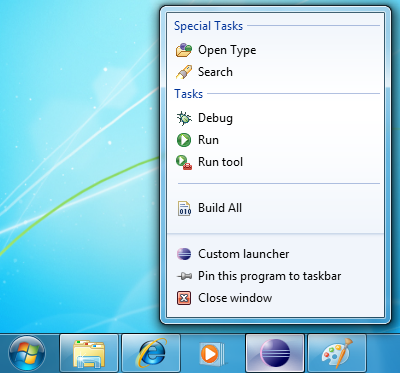
Especially one of the improvements was of interest as I see how it could be used to improve Lotus Notes, the interaction with the OS and in turn the usability of the client. The feature is about the program representation in the program list normally shown in the bottom of the screen. Below are some samples. I could see this used to give feedback about unread e-mails, pending IM’s, progress of overall replication etc. Interesting stuff (see “TaskItem overlay image / text / menu / process” in the release notes).

MyWidgets just got better – Option to specify a custom widget icon for sidebar

Please note: The following is from the release notes of Notes 8.5.2 so I don’t take credit for writing this. Lotus Notes 8.5.2 is in beta and there are no guarantees that the features described here will be in the final product that IBM ships.

Power users and administrators can add a new viewImageUrl attribute to the palleteItem element in a widget’s extension.xml definition to specify a custom icon to use in the sidebar view/title bar for that widget. The viewImageURL attribute value must be a URL to the desired image, for example:

viewImageUrl="http://my.server.com/myImage.ico"

Example widget XML syntax is shown below:

<?xml version="1.0" encoding="UTF-8"?>
<webcontextConfiguration version="1.1">
<palleteItem allowMutlipleSidebars="true"
contributeToSideshelfOnStartup="false"
id="1140471160" viewImageUrl="http://my.server.com/myImage.ico"
imageUrl="http://www.google.com/favicon.ico"
providerId="com.ibm.rcp.toolbox.web.provider.WebServicesPalleteProvider"
title="Google Search" url="http://www.google.com/" >

MyWidgets just got better – Option to set default widget double-click action

Please note: The following is from the release notes of Notes 8.5.2 so I don’t take credit for writing this. Lotus Notes 8.5.2 is in beta and there are no guarantees that the features described here will be in the final product that IBM ships.

You can now set a default double-click action to open widgets in the sidebar, a new window, a float window, or a tab. The default does not impact widgets that have a pre-defined double-click action defined in their XML. The supplied default is newWindow.

Note: See Tech Note 1399534 “Adding a widget custom double-click action” for information about customizing an individual widget’s double-click action. (Red: I was unable to find this technote – maybe it hasn’t been published yet).

This change enables the control of what action is taken when you double click on a widget in the My Widgets sidebar panel. The default will act on all widgets that do not already have a pre-defined double click action. The new plugin_customization.ini file preference is

com.ibm.rcp.toolbox/doubleClickAction=<option>

where valid values for <option> are:

  • sideBar
  • newWindow
  • float
  • tab

For example, to set the default double-click action to open the widget action in the sidebar, add the following statement to the user’s local plugin_customization.ini file:

com.ibm.rcp.toolbox/doubleClickAction=sideBar

MyWidgets just got better – Option to reuse a single sidebar panel for a particular widget’s action

Please note: The following is from the release notes of Notes 8.5.2 so I don’t take credit for writing this. Lotus Notes 8.5.2 is in beta and there are no guarantees that the features described here will be in the final product that IBM ships.

You can now specify if a widget uses only one sidebar panel or if multiple sidebar panels are allowed. You can set a preference in the widget XML to define whether a new Sidebar panel is opened for each widget action or whether the same Sidebar panel is reopened and overwritten for each action initiated by that widget. There are three types of actions that add a widget to the client sidebar panel.

  • The widget property “Contribute to Sidebar on startup.” When enabling this option, a sidebar panel is opened in the sidebar for the widget.
  • Right click on a widget in the My Widgets sidebar panel and choose Open in -> Sidebar. Every time this action is executed, a new sidebar panel is opened.
  • Create a Live Text action that puts the action results into the sidebar. Every time this action is executed, a new sidebar panel is opened.

If a user needs to look up multiple pieces of data using a particular widget, there would be a new sidebar panel opened for each lookup. Administrators and power uses can add a new “singletonSidebar” attribute to the palleteItem element in the widget’s XML definition after creating and exporting the widget. Valid values are “true” and “false” and sample syntax, where it would appear in the widget’s XML file, is as follows:

<webcontextConfiguration version="1.1">
<palleteItem singletonSidebar="false"

OR

<webcontextConfiguration version="1.1">
<palleteItem singletonSidebar="true"

When set to “true” the three actions described will share the same widget sidebar view. When set to “false” the three actions above will open in new sidebar views.
Note: The default value is “false” so as not to affect Notes 8.5.1 and prior behavior.

Note: If there were multiple sidebars opened for a widget prior to applying this feature improvement and then you upgrade to a release with this feature improvement (and implement it), the previous sidebars will not be reused and will remain open until the user manually closes them.